
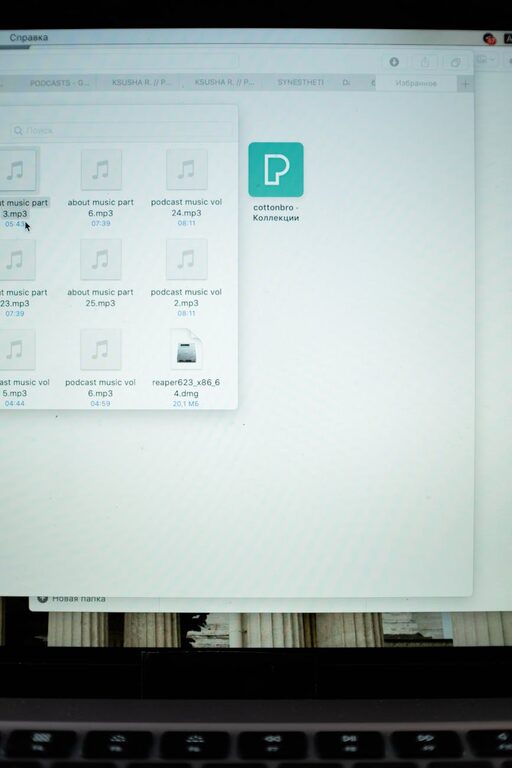
Keeping your computer files organized is a key step to staying productive and reducing stress. Whether you use your computer for work, school, or personal projects, having a clear system for organizing your files helps you find what you need quickly and keeps your device running smoothly. If your desktop is cluttered or your downloads folder is a mess, don’t worry—this guide will provide practical tips to bring order to your digital workspace.
Why Organize Your Files?
Before diving into the tips, it’s helpful to understand why organizing files matters:
– Saves time: No more endless searching for that important document.
– Improves efficiency: A neat system helps you focus on your tasks.
– Prevents data loss: Clear organization reduces accidental deletions.
– Simplifies backups: Organized files are easier to back up regularly.
– Keeps your computer healthy: Excess clutter can slow down your device.
Now, let’s explore how you can create and maintain an effective file organization system.
Plan Your Folder Structure
A well-planned folder structure is the foundation of organized files.
1. Use Broad Categories
Start by creating main folders based on broad topics like:
– Work
– Personal
– School
– Finances
– Photos
This divides your files into manageable sections.
2. Break Down into Subfolders
Within each main folder, make subfolders to further sort your files. For example, under “Work,” you might have:
– Projects
– Reports
– Meeting Notes
And under “Photos,” you could organize by year or event.
3. Avoid Over-Nesting
Keep your folder levels reasonable (ideally no more than 3-4 layers deep) to avoid confusion and make navigation easier.
Use Clear and Consistent Naming Conventions
File names should be descriptive and standardized to help you identify contents at a glance.
Tips for Naming Files:
– Use dates in YYYY-MM-DD format for easy sorting (e.g., 2024-06-01_MeetingNotes).
– Include keywords that describe the file.
– Avoid vague names like “document1” or “scan.”
– Use underscores or dashes instead of spaces (some systems handle spaces better, but underscores are widely safe).
– Keep names concise but informative.
Regularly Clean Up Your Files
Make file maintenance a routine.
Schedule Weekly or Monthly Reviews
Set reminders to review your downloads, desktop, and other folders to delete duplicates or unnecessary files.
Archive Old Files
Move rarely used but important files to an “Archive” folder or an external drive to free up space.
Utilize Your Operating System’s Tools
Both Windows and macOS provide features that help with file organization.
File Explorer & Finder
– Use the “Sort By” and “Group By” options to view files by date, type, or size.
– Utilize the search function to locate files quickly.
Tags and Labels (macOS and Windows 10+)
Apply color-coded tags or labels to categorize files across folders for easy visual organization.
Quick Access or Favorites
Pin frequently used folders in Quick Access (Windows) or Favorites (macOS) for faster navigation.
Backup Your Organized Files
Having a backup system ensures all your cleaned-up and well-organized files stay safe.
Use Cloud Storage
Services like Google Drive, Dropbox, or OneDrive automatically sync your files and offer easy access from multiple devices.
External Hard Drives
Maintain physical backups on external drives for extra security.
Automate Where Possible
Automation can make organizing easier.
Use Folder Actions or Scripts
For example, macOS users can apply Folder Actions that automatically move files based on certain rules.
Set Up Download Rules
Configure your browser or download manager to save certain file types to specific folders automatically.
Avoid Common Pitfalls
– Don’t keep everything on your desktop—it’s easy to let clutter build up.
– Avoid saving too many files in one folder; this can make scrolling and searching slow.
– Don’t rely solely on search to find files; a good folder structure speeds things up.
– Avoid mixing different types of files (e.g., photos with documents) unless they have a concrete link.
Final Thoughts
Organizing your computer files doesn’t have to be overwhelming. By creating a clear folder structure, applying consistent naming conventions, and regularly cleaning up your digital space, you’ll enjoy a more efficient and stress-free computer experience. Combine these habits with built-in OS tools and automated processes to keep your files in order with minimal effort.
Start small today—take 15 minutes to tidy up a folder—and build from there. Your future self will thank you!